
Most Fabric projects start the same way. There’s a notebook called Packages, another called Connections and a third called Functions, and every other notebook begins with %run on all three, followed by the same five spark.conf.set() lines copied from somewhere. Someone enabled the Native Execution Engine in one workspace but not the others. And before a notebook goes to production, someone edits env = "dev" by hand.
A custom Environment replaces all of that with one item per workspace that every notebook inherits. This part covers the five things it configures, in the order you’d set them up, and how to deploy them as code:
- Runtime: 1.3 or 2.0, per stage.
- Spark properties: set once in the Environment, not in every notebook.
- Spark pool and compute: small in dev, sized for the load in production.
- The Native Execution Engine (NEE): on for every runtime, including 2.0.
- Your enterprise functions: written once, packaged as a versioned library, and imported in one line from every notebook.
The first four are configuration: a few lines in one file per stage. The fifth is code: your own Python package, versioned in Git.
Python notebooks can’t use an Environment, so the last section shows how the same library reaches them through a lakehouse folder.
Theory here, practice in the tool. This page explains the why. To get the files for your own workspaces, use the Custom Environment Builder. It generates the configuration for points 1 to 4 and the deploy commands for the repo linked at the end of this page. Point 5 is your code, so it lives in the repo, not in the tool.
Before you start: requirements
These are foundations of the platform rather than of the Environment, and they’ll be covered in full in Module 2: Architecture. Until that part is published, here’s the short version of what this part assumes.
1. A Variable Library that says which environment each workspace is. This is the first requirement, because the library’s code relies on it: get_paths() reads it to decide whether to use dev or production paths, so no notebook ever hardcodes env = "dev".
| Setting | Value |
|---|---|
| Item | Variable Library named vl_environment, in the Utils folder of every workspace |
| Variable | environment, type String |
| Default value set | environment = "dev", active in dev workspaces |
Value set pro |
environment = "pro", active in production workspaces |
If you don’t have one yet, bootstrap_environments.py creates it for you (see below), and deploy.py activates the right value set on every deploy.
2. One workspace per stage and layer, e.g. dev_insidemicrosoftfabric_ws_bronze … pro_insidemicrosoftfabric_ws_gold, following the naming convention. You’ll need their workspace ids, but you don’t have to copy them one by one from each URL: the repo’s list_workspaces.py reads every name and id from Fabric and writes workspaces_dev.json / workspaces_pro.json for you.
# Browser login with your user; keeps the workspaces starting with dev_ / pro_
python deploy/list_workspaces.py --target dev --target pro --write
Run it with --spn and it lists only what the Service Principal can see, which doubles as a check that it has access to every workspace before the first deploy.
3. A Service Principal (app registration) with the Contributor role on each of those workspaces. The tenant setting Service principals can use Fabric APIs must be enabled for it. It’s what deploys from Azure DevOps.
4. Custom compute allowed in each workspace, if you want the Environment to set pool, cores or memory: Workspace settings > Data Engineering/Science > Spark settings > Pool > Customize compute configurations for items.
The Environment: one per workspace, defined in Git
Each workspace gets one Environment with the same name pattern (dev_insidemicrosoftfabric_env_fabricutils, pro_insidemicrosoftfabric_env_fabricutils, following the naming convention), inside a Utils folder, next to the Variable Library. It’s then set as the workspace default (Workspace settings > Data Engineering/Science > Spark settings > Environment). That’s the step that makes it disappear: every notebook in the workspace picks it up without anyone attaching it.
Here is where each of the five points lives:
| # | What | Scope | In the repo | Where you see it in Fabric |
|---|---|---|---|---|
| 1 | Runtime | Per stage (dev / pro) | runtimeVersion |
Environment > Runtime |
| 2 | Spark properties | Per stage | sparkProperties |
Environment > Spark compute > Spark properties |
| 3 | Spark pool and compute | Per workspace | compute |
Environment > Spark compute > Compute |
| 4 | NEE | Per stage | spark.native.enabled in sparkProperties |
Environment > Spark compute > Acceleration |
| 5 | Enterprise functions | Same in every workspace | src/fabric_utils (a wheel) |
Environment > Custom libraries |
Points 1 to 4 live in one file per stage, deploy/environment_dev.jsonc and deploy/environment_pro.jsonc. Point 5 is a Python package. Nothing is changed by hand in the UI.
Create once with your user, update forever with the Service Principal. Depending on tenant settings, creating new items with a Service Principal can fail with 403 FeatureNotAvailable. Updating existing ones works. So the repo splits the work:
# Once per workspace, browser login with your user
python deploy/bootstrap_environments.py --target dev --target pro
From then on, deploy.py does everything else with the Service Principal, locally or in the pipeline.
1. Runtime
The runtime decides the Spark and Delta versions every notebook runs on: 1.3 (Spark 3.5, Delta 3.2, generally available) or 2.0 (Spark 4, Delta 4, public preview). It’s set per stage, so piloting 2.0 in dev while production stays on 1.3 is a normal setup.
"runtimeVersion": "1.3"
The choice matters beyond the Spark version, because it changes which Spark properties you still have to set yourself. Runtime 2.0 turns on a long list of Delta optimizations by default that were opt-in on 1.3:
| Property | Runtime 1.3 | Runtime 2.0 |
|---|---|---|
spark.native.enabled (NEE) |
Set it | Set it |
spark.databricks.delta.autoCompact.enabled |
Set it | Set it |
spark.microsoft.delta.targetFileSize.adaptive.enabled |
Set it | On by default |
spark.microsoft.delta.optimize.fast.enabled |
Set it | On by default |
spark.microsoft.delta.optimize.fileLevelTarget.enabled |
Set it | On by default |
spark.databricks.delta.properties.defaults.enableDeletionVectors |
Set it | On by default |
spark.microsoft.delta.snapshot.driverMode.enabled |
Set it | On by default |
Changing runtime is a separate, one-off operation. On the first deploy the Environment is empty, so deploy.py sets the runtime from the file. Once it has a published custom library, changing its runtime directly fails with LibraryManagementError. migrate_runtime.py follows Microsoft’s sequence: remove libraries, publish, change runtime, upload again, publish again. Run it in dev, test your notebooks against the new Spark version, then run it for production. Runtime 2.0 is still in public preview, so pilot it in dev first (what changes in Runtime 2.0).
2. Spark properties: Environment first, code for the exceptions
Spark properties in the Environment are applied when each session starts. Notebooks don’t set them, can’t forget them, and all run with the same behaviour.
| Kind of config | Where it goes |
|---|---|
| Needed by every session: NEE, auto compaction, Delta optimizations, resource profile, timezone | sparkProperties in environment_<stage>.jsonc |
Needed by one notebook or one read, e.g. datetimeRebaseModeInRead=LEGACY for an old parquet source |
In code, scoped with session_config() |
Following the table above, the Runtime 1.3 file sets seven properties and the Runtime 2.0 file only needs two:
// Runtime 1.3
"sparkProperties": {
  "spark.native.enabled": "true",
  "spark.databricks.delta.autoCompact.enabled": "true",
  "spark.microsoft.delta.targetFileSize.adaptive.enabled": "true",
  "spark.microsoft.delta.optimize.fast.enabled": "true",
  "spark.microsoft.delta.optimize.fileLevelTarget.enabled": "true",
  "spark.databricks.delta.properties.defaults.enableDeletionVectors": "true",
  "spark.microsoft.delta.snapshot.driverMode.enabled": "true"
}
// Runtime 2.0: the Delta optimizations are already on, NEE and auto compaction aren't
"sparkProperties": {
  "spark.native.enabled": "true",
  "spark.databricks.delta.autoCompact.enabled": "true"
}
Two rules make this safe to automate:
- The file is the complete list.
deploy.pytreatssparkPropertiesdeclaratively, so a property someone adds by hand in the UI is removed on the next deploy. If it matters, it goes in Git. - Values are strings:
"true", nottrue. The deploy script validates this before calling the API.
For the exceptions, the library has a context manager that sets a config for one block and restores it afterwards, so it doesn’t leak into the rest of the session:
with session_config(spark, spark__sql__parquet__datetimeRebaseModeInRead="LEGACY"):
    df_legacy = spark.read.parquet(paths["path_bronze_files"] + "legacy/")
Not sure which properties you need? The Spark Config Toolkit walks through Delta, joins and scaledown with the why and when for each one. Anything it tells you to apply everywhere belongs in this file.
3. Spark pool and compute: small in dev, sized for the load in production
Dev and production don’t need the same Spark. Dev runs on sample data and shouldn’t burn capacity units. Production has to finish the real volumes inside the batch window. Because compute lives in the Environment, each workspace gets its own pool, node size and executor range, and it’s defined in Git instead of being tweaked by hand in each workspace:
// environment_dev.jsonc: small on purpose
"dev_insidemicrosoftfabric_ws_silver": {
  "instancePool": {"name": "Starter Pool", "type": "Workspace"},
  "driverCores": 4, "driverMemory": "28g", "executorCores": 4, "executorMemory": "28g",
  "dynamicExecutorAllocation": {"enabled": true, "minExecutors": 1, "maxExecutors": 2}
}

// environment_pro.jsonc: sized for production
"pro_insidemicrosoftfabric_ws_silver": {
  "instancePool": {"name": "Starter Pool", "type": "Workspace"},
  "driverCores": 8, "driverMemory": "56g", "executorCores": 8, "executorMemory": "56g",
  "dynamicExecutorAllocation": {"enabled": true, "minExecutors": 1, "maxExecutors": 4}
}
- The pool is either the Starter Pool (Medium nodes, 8 cores / 56g, fast start) or a custom pool that already exists in the workspace (
"type": "Workspace") or the capacity ("type": "Capacity"). The Environment picks a pool; it doesn’t create one. - Cores and memory go in fixed pairs (4/28g, 8/56g, 16/112g, 32/224g, 64/400g) and can’t exceed the pool’s node size, so anything above 8 cores needs a custom pool with bigger nodes.
- A workspace you don’t want to touch gets
{}.
If a production job gets slower as data grows, the fix is a one-line change in a pull request, and it goes through the same approval as any other release.
4. The Native Execution Engine, on every runtime
The Native Execution Engine runs Spark SQL and DataFrame operations in native, vectorized code instead of the JVM. When a query stays on the native path, it is often several times faster with no code changes. It’s also off by default on every runtime.
Runtime 2.0 is where people get caught. With so many Delta optimizations on by default, it’s easy to assume NEE is on too. It isn’t. So it’s one line in both files, whatever the runtime:
"spark.native.enabled": "true"
Check that it’s actually working. Run check_environment(spark) from the library. It prints the runtime and the effective value of each property, and warns if NEE is off. Then open the Spark UI’s Queries for Native Engine tab: green nodes ran natively and light blue ones fell back to the JVM.
If one query regresses, don’t turn NEE off for everyone. Wrap just that block:
with native_disabled(spark):
    save_table(df_problematic, paths["path_silver"], "customers_history")
5. Your enterprise functions: a versioned library
The first four points are settings. This one is code: the functions every notebook in your company relies on, such as paths per environment, how to read and write, schema enforcement, logging and your business rules. It’s also the one point the builder can’t generate, because it’s yours.
Why a wheel and not a Functions notebook
The %run Functions pattern works until it doesn’t. Nothing is versioned, nothing is tested, a notebook can quietly depend on a variable another notebook defined, and dev and production can drift apart without anyone noticing. Packaging the same code as a Python wheel fixes all four:
- Versioned. Every release has a number (
versioninpyproject.toml), andcheck_environment()tells you which one is live in each workspace. “Which version of Functions is production running?” has an answer. - Reviewed and tested. Every change goes through a pull request, and the pipeline builds the wheel before anything touches Fabric, so a syntax error never reaches a workspace.
- The same code everywhere. The Environment installs the same wheel in every workspace, and production only gets a new version after an approval.
- No hidden state. Functions take arguments and return results. Nothing depends on what another notebook happened to define.
What goes in the library
src/fabric_utils/
  connections.py     # get_env(), get_paths(): workspaces + OneLake paths per environment
  spark_config.py    # check_environment(), session_config(), native_disabled()
  load_save_data.py  # load_data(), save_table()
  schema.py          # print_schema(), enforce_destination_schema()
  transform.py       # rename_columns(), trim_string_columns(), deduplicate()...
  loggers.py         # NotebookLogger: one row per run in the control lakehouse
  business.py        # add_surrogate_key(): the template for your business rules
- In: anything used by more than one notebook, such as paths, read/write, schema enforcement, logging, alerts and shared business rules like surrogate keys.
- Out: the transformation logic for one specific table. That stays in its notebook.
- Dependencies: keep
dependenciesinpyproject.tomlshort. Fabric installs each one from PyPI when the Environment publishes, which adds publish time. PySpark, Delta and pandas are already in the runtime.
Creating a function
Adding a business rule is the same four steps every time. Say every Gold table needs the same surrogate key:
-
Write it in the module where it belongs, or in a new one:
# src/fabric_utils/business.py def add_surrogate_key(df, keys, name="sk"): """Deterministic 64-bit key from the business keys: same input, same key, in every environment.""" parts = [F.coalesce(F.col(k).cast("string"), F.lit("<null>")) for k in keys] return df.withColumn(name, F.xxhash64(*parts)) -
Export it in
src/fabric_utils/__init__.py, sofrom fabric_utils import *picks it up:from fabric_utils.business import add_surrogate_key - Bump the version in
pyproject.tomland__version__(for example0.2.0→0.3.0). - Open a pull request. Once it’s merged, the pipeline builds
fabric_enterprise_utils-0.3.0-py3-none-any.whl, deploys it to every dev workspace, and waits for an approval before production.
Using it in a notebook
No %run, no %pip install: the Environment is the workspace default, so the library is already installed. __init__.py also re-exports the usual PySpark imports, so a notebook starts with one line and gets straight to its own logic:
from fabric_utils import *

paths = get_paths()                      # "dev" or "pro", from the Variable Library
log = NotebookLogger("nb_silver_customers", layer="silver")

df = load_data(paths["path_bronze"], "customers")
df = rename_columns(df, {"CustomerId": "customer_id", "Name": "customer_name"})
df = deduplicate(trim_string_columns(df), keys=["customer_id"], order_by="modified_at")
df = add_surrogate_key(df, keys=["customer_id"], name="sk_customer")
save_table(enforce_destination_schema(df, destination_schema), paths["path_silver"], "customers")
log.end()
The same notebook runs unchanged in dev and production. The only things that differ are the Variable Library value and, after a release, the library version, and both are controlled from Git.
Trade-off to know about: sessions that use an Environment with custom libraries don’t get the Starter Pool’s near-instant start, because Fabric has to install the library first. Expect roughly a minute or more instead of a few seconds. For scheduled pipelines that rarely matters. For interactive work, it’s the price of not having
%runeverywhere.
Python notebooks: the same library, without an Environment
Not every notebook needs Spark. Hourly loads on small tables, a daily ETL that fits on one machine, and service notebooks that only call the Fabric API run cheaper in a Python notebook with DuckDB (the benchmark has the numbers, Build 4.3 the how-to).
Those notebooks need the same enterprise functions: the paths per environment, the run log, how to read and write. But there’s a catch: Environment integration isn’t available on Python notebooks. No custom libraries, no workspace default. Leave it there and a Functions_Python notebook with its %run is back within a week, drifting away from the Spark one.
Our proposal: the same wheel, delivered by a second route. It’s in the repo from version 0.2.0: py_engine.py, the pythonLibs setting, deploy.py --python-libs-only and an example Python notebook, nb_gold_open_orders_python.
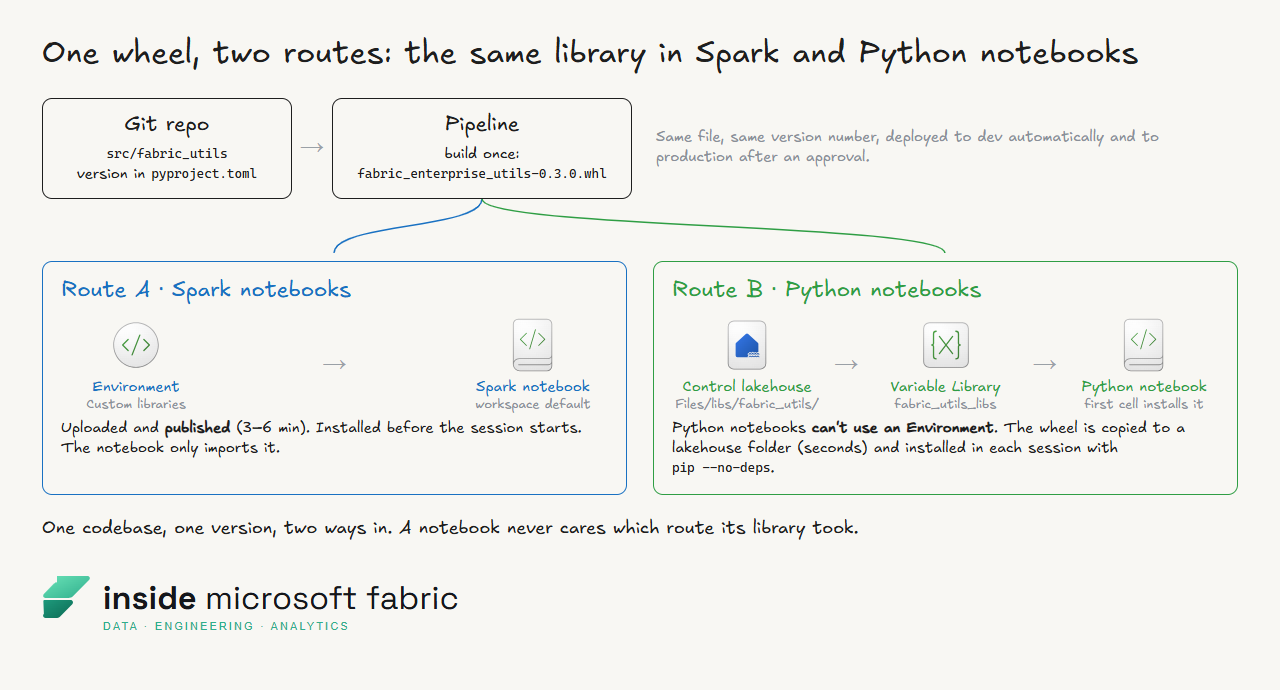
It takes four pieces.
1. One wheel, two modes
The library decides at import time whether it’s running in a Spark notebook or a Python one, and exports what makes sense for each:
# src/fabric_utils/__init__.py
from importlib.util import find_spec

def _detect_engine() -> str:
    has_spark = find_spec("pyspark") is not None and find_spec("delta") is not None
    return "spark" if has_spark else "python"

FABRIC_UTILS_ENGINE = _detect_engine()

from fabric_utils.connections import get_paths      # both modes
from fabric_utils.loggers import NotebookLogger     # both modes: Spark or deltalake underneath

if FABRIC_UTILS_ENGINE == "spark":
    from fabric_utils.load_save_data import load_data, save_table
    ...                                             # everything from section 5
else:
    from fabric_utils.py_engine import duckdb_connect, register_delta_views, save_table_arrow
The Python mode gets one small module, py_engine.py, with the DuckDB and delta-rs equivalents of load_data and save_table. It imports duckdb and deltalake inside each function, so the Spark side never depends on them.
| Spark mode | Python mode |
|---|---|
load_data |
duckdb_connect + register_delta_views: one DuckDB view per Delta table, reading only the columns and rows the query uses |
destination_schema = StructType([...]) |
destination_schema = pa.schema([...]) (pyarrow) |
enforce_destination_schema + save_table |
save_table_arrow(rel, path, table, schema=destination_schema): column order and types from the schema, fails if a column is missing |
NotebookLogger |
NotebookLogger: the same log table, written with deltalake |
Why one wheel and not two: paths and logging can’t drift between Spark and Python, one pull request changes both, and “which version is running?” still has one answer.
2. Upload the wheel to a lakehouse
The wheel needs a place every Python notebook can read. The notebook’s own Resources folder works for one notebook, but it’s per notebook: with 30 notebooks you’d upload 30 copies on every release.
So the wheel goes to one folder per stage, in the lakehouse of the control workspace:
| Stage | Lakehouse | Folder |
|---|---|---|
| dev | dev_insidemicrosoftfabric_control_lh |
Files/libs/fabric_utils/ |
| pro | pro_insidemicrosoftfabric_control_lh |
Files/libs/fabric_utils/ |
The deploy does it right after updating the Environments, through the OneLake API (the same ADLS Gen2 API as any storage account): upload the new wheel, then delete the older versions, so the folder always holds exactly one. It takes seconds; there’s nothing to publish. The folder is declared next to the rest of the stage’s configuration:
// environment_dev.jsonc
"pythonLibs": {
  "workspace": "dev_insidemicrosoftfabric_ws_control",
  "lakehouse": "dev_insidemicrosoftfabric_control_lh",
  "folder": "Files/libs/fabric_utils"
}
The identity that runs the notebooks needs read access to that lakehouse. A scheduled notebook in Silver reading a file in Control is a cross-workspace read, so check it once with the identity that runs your pipelines.
3. Tell every notebook where it is: the Variable Library
The notebook shouldn’t hardcode an abfss:// path, for the same reason it doesn’t hardcode env = "dev". The path goes into the Variable Library you already have, as one more variable:
| Setting | Value |
|---|---|
| Variable Library | vl_environment (the same one get_paths() reads) |
| Variable | fabric_utils_libs, type String |
| Default value set | abfss://dev_insidemicrosoftfabric_ws_control@onelake.dfs.fabric.microsoft.com/dev_insidemicrosoftfabric_control_lh.Lakehouse/Files/libs/fabric_utils |
Value set pro |
the same path with pro_ |
The deploy keeps this variable up to date in every workspace from the pythonLibs setting of both stages, so a Python notebook in production reads the production folder without anyone editing anything.
4. Use it in a notebook
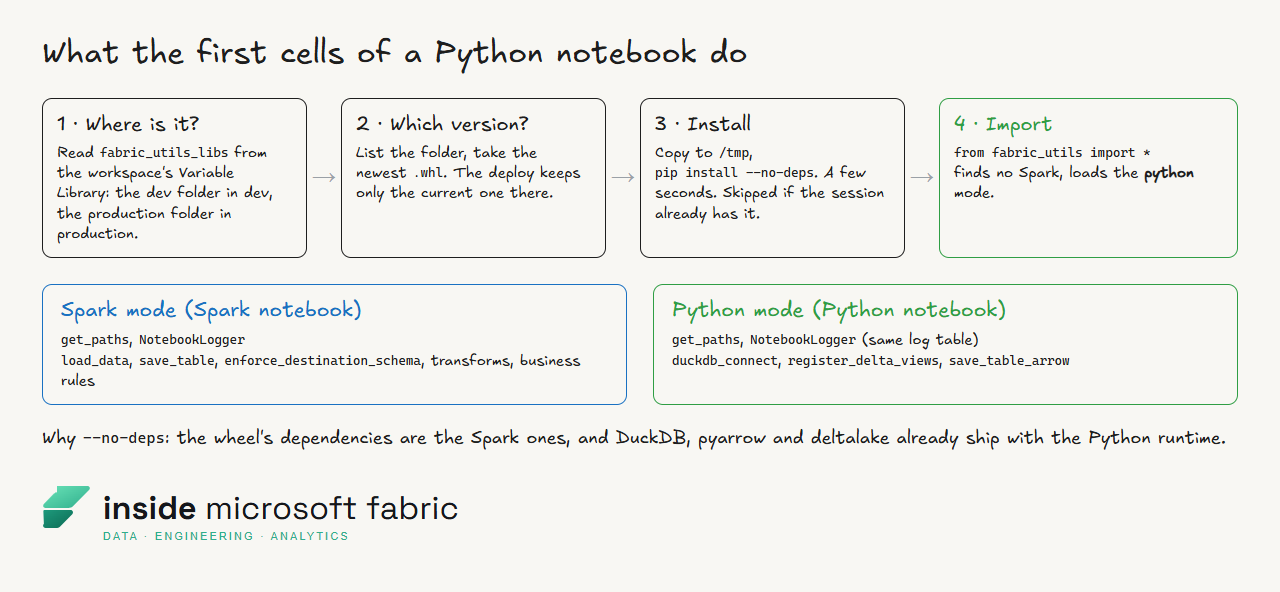
The first code cell, right after the parameters cell, is the same in every Python notebook:
import importlib.util, subprocess, sys
import notebookutils

if importlib.util.find_spec("fabric_utils") is None:
    libs = notebookutils.variableLibrary.getLibrary("vl_environment").fabric_utils_libs
    whl = max((f for f in notebookutils.fs.ls(libs) if f.name.endswith(".whl")), key=lambda f: f.name)
    notebookutils.fs.cp(whl.path, f"file:/tmp/{whl.name}")
    subprocess.run([sys.executable, "-m", "pip", "install", "--no-deps", "-q", f"/tmp/{whl.name}"], check=True)
Three choices in those lines:
--no-deps. The wheel’sdependenciesare the ones the Spark side needs. A Python notebook already has DuckDB, pyarrow and deltalake, and resolving the rest from PyPI on every run would only add time and risk.- pip from Python, not
%pip. Inline%pip installis disabled by default in pipeline runs unless you pass_inlineInstallationEnabled. Calling pip as a normal Python process behaves the same interactively and scheduled; it’s how our hourly loads run. - Skip if installed. Running the cell twice in the same session costs nothing.
After that, the notebook looks like its Spark sibling:
from fabric_utils import *                       # python mode
import pyarrow as pa

paths = get_paths()                              # dev or pro, from the Variable Library
log = NotebookLogger("nb_gold_open_orders", layer="gold")

destination_schema = pa.schema([
    pa.field("order_id", pa.string()),
    pa.field("customer_name", pa.string()),
    pa.field("promised_date", pa.date32()),
    pa.field("status", pa.string()),
])

con = duckdb_connect()                           # UTC session + OneLake token
register_delta_views(con, paths["path_silver"], ["orders", "customers"])

rel = con.sql("""
    SELECT o.order_id, c.customer_name, o.promised_date, o.status
    FROM orders o JOIN customers c USING (customer_id)
    WHERE o.status <> 'SHIPPED'
""")
save_table_arrow(rel, paths["path_gold"], "open_orders", schema=destination_schema)
log.end()
Same paths, same log table, same library version as the Spark notebooks, and no %run.
Trade-off to know about: the install runs in every session, so it adds a few seconds to each run. For an hourly load that’s noise. If you ever run Python notebooks every few minutes, measure it.
Coming later: orchestration. How these notebooks run together (schedules, DAGs with
runMultiple, pipelines that mix Spark and Python notebooks, retries and alerts) gets its own part in Module 5: Orchestration.
From commit to every workspace
deploy.py does the same thing for every workspace in workspaces_<stage>.json: check the runtime, replace the old wheel, stage Spark properties and compute (only if something changed), publish (3 to 6 minutes), set the Environment as the workspace default and activate the right value set. Then, for Python notebooks, it copies the wheel to the control lakehouse and updates fabric_utils_libs. The Azure DevOps pipeline chains it:
push to main (src/, deploy/, pyproject.toml)
   │
   ├─ Build       validate both config files + build the wheel
   ├─ DeployDev   deploy.py --target dev          (automatic: Environments + lakehouse folder)
   ├─ [ approval on the "fabric-pro" Azure DevOps environment ]
   └─ DeployPro   deploy.py --target pro
Pull requests run only the Build stage, so a typo in a config file or a syntax error in the library is caught before it reaches a workspace. migrate_runtime.py is deliberately left out of the pipeline, because changing runtime is a decision, not a deploy.
Put it into practice
- Open the Custom Environment Builder. Choose the runtime, Spark properties, pool and compute, and NEE, paste your workspaces (the output of
list_workspaces.py, or of the Semantic Link snippet it gives you for a Fabric notebook), and it generatesenvironment_*.jsonc,workspaces_*.jsonand the exact commands to run, in order. - Get the repo below and drop the generated files into
deploy/. - Move your shared functions into
src/fabric_utils, starting withbusiness.py, and bump the version. - Bootstrap once, deploy, and run
notebooks/nb_check_environment.ipynbin a workspace to confirm the runtime, the library version and NEE. - Using Python notebooks too? Add
pythonLibsto both stage files and thefabric_utils_libsvariable tovl_environment, then start every Python notebook with the install cell.